Difference between revisions of "Setup"
Paulo Santos (Talk | contribs) m (Paulo Santos moved page Installation to Setup) |
|||
| (18 intermediate revisions by 2 users not shown) | |||
| Line 8: | Line 8: | ||
{{TOC right}} | {{TOC right}} | ||
| − | |||
| + | = DS Composer & Player Setup = | ||
| − | + | == DS Composer Pre-requisites == | |
| − | + | ||
| − | + | ||
| − | + | ||
| − | + | ||
| − | + | ||
| − | + | ||
| − | + | ||
| − | + | ||
| − | + | ||
| − | + | ||
| − | + | ||
| − | + | ||
| − | + | ||
| − | + | ||
| − | + | ||
| + | The DS Installer provides all the required software. To ensure that all video formats are supported on your PC, prease install the [http://windows7codecs.com/ Windows 7 Codec Pack.] | ||
| − | + | Alternately you can install these optional codec utilities: | |
| − | |||
| − | |||
| − | |||
| − | |||
* Install codecs: | * Install codecs: | ||
** [http://sourceforge.net/projects/ffdshow/ ffdshow] - Should be enough for most of the videos. | ** [http://sourceforge.net/projects/ffdshow/ ffdshow] - Should be enough for most of the videos. | ||
** [http://sourceforge.net/projects/ffdshow/ GSpot] - In case the video needs extra codecs and you don't know which, this program can help you find out which. | ** [http://sourceforge.net/projects/ffdshow/ GSpot] - In case the video needs extra codecs and you don't know which, this program can help you find out which. | ||
| + | |||
| Line 43: | Line 26: | ||
== Standalone Configuration == | == Standalone Configuration == | ||
| − | [[File: | + | [[File:Diagrama_QDS_Help.jpg|600px|link=]] |
| − | Standalone configuration is a single box solution, requiring no second PC. All | + | Standalone configuration is a single box solution, requiring no second PC. All DS players |
have Composer pre-installed and are capable of operating in this way. | have Composer pre-installed and are capable of operating in this way. | ||
| Line 57: | Line 40: | ||
== Network Configuration == | == Network Configuration == | ||
| − | [[File: | + | [[File:Diagrama_QDS_Help2.jpg|600px|link=]] |
| − | Network configuration is a more flexible solution, where Network Composer is installed on a | + | Network configuration is a more flexible solution, where Network Composer is installed on a client |
PC connected to the local network. The player is usually positioned close to the digital signage | PC connected to the local network. The player is usually positioned close to the digital signage | ||
| − | display screen and also connected to the local network. Once installed, | + | display screen and also connected to the local network. Once installed, DS Network |
Composer can automatically detect any players connected to the network. | Composer can automatically detect any players connected to the network. | ||
| Line 69: | Line 52: | ||
Configuration and/or consult your IT specialist. | Configuration and/or consult your IT specialist. | ||
| − | |||
| − | + | = Installing DS Composer On a Client PC = | |
| − | + | Insert the Software CD or USB Key into the client computer and run the Install program. | |
| − | + | ||
| − | + | ||
| − | + | ||
| − | + | When the Setup screen appears, follow the instructions to install DS Composer on your computer. If | |
| − | + | the Install screen does not appear automatically, click the Start button on your Windows | |
| + | taskbar and then click the Run command. When the Run dialog box opens, enter D:\install.bat | ||
| + | and click OK (where D is the letter of your CD-ROM or USB drive) | ||
| − | + | Important: For managed clients, DS must be installed by a system administrator. Consult your IT specialist. | |
| − | + | ||
| − | + | ||
| + | Consult the IT Adiministrator Guidelines document for further information. | ||
| − | == Software Setup Overview == | + | == DS Player Software Setup Overview == |
| − | Your | + | Your DS/FL Player bundle comes with the latest installation of Player and Local Composer |
| − | latest installation of Player | + | |
software. | software. | ||
| − | To access the setup options on a player that has | + | To access the setup options on a player that has already been commissioned, right click on the player |
| − | already been commissioned, right click on the player | + | logo in the Windows tray and select Open Player to show the player control panel. Then select Options and Setup to access the setup menu. |
| − | logo | + | |
| − | in the Windows tray and select Open Player | + | |
| − | to show the player control panel | + | Consult the Installation Manual for further information. |
| − | select Options and Setup to access the setup menu | + | |
Latest revision as of 16:36, 28 April 2013
<languages />
<translate>
DS Composer & Player Setup
DS Composer Pre-requisites
The DS Installer provides all the required software. To ensure that all video formats are supported on your PC, prease install the Windows 7 Codec Pack.
Alternately you can install these optional codec utilities:
- Install codecs:
Typical Configurations
Standalone Configuration
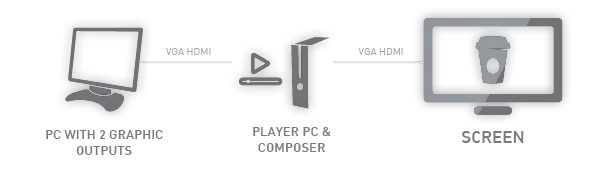
Standalone configuration is a single box solution, requiring no second PC. All DS players
have Composer pre-installed and are capable of operating in this way.
In this setup the same computer is used to create presentations and to playback them, suitable for smaller installations. It’s highly advisable to use a PC with dual head VGA graphics adapter.
You can also operate with a single screen. In this case the player must be shut down for composer operation.
Network Configuration
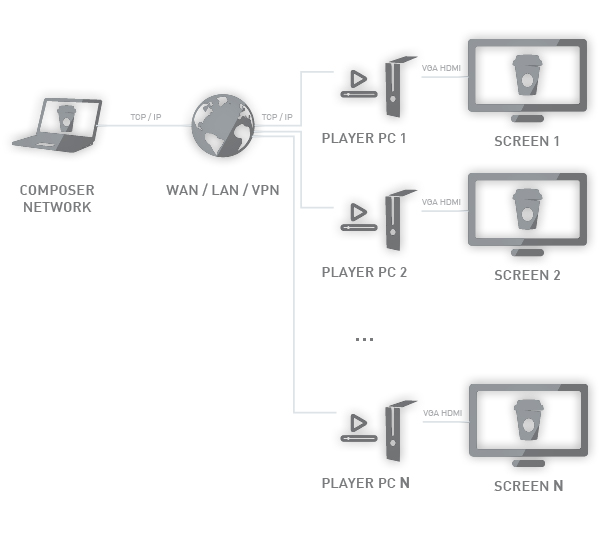
Network configuration is a more flexible solution, where Network Composer is installed on a client PC connected to the local network. The player is usually positioned close to the digital signage display screen and also connected to the local network. Once installed, DS Network Composer can automatically detect any players connected to the network.
Usually all players and composers are connected on the same local network (same subnet). This is a requirement for Network Composer’s Player Search facility. It is possible to connect players across Wide Area Networks (WAN). Please consult the chapter on Advanced Player Configuration and/or consult your IT specialist.
Installing DS Composer On a Client PC
Insert the Software CD or USB Key into the client computer and run the Install program.
When the Setup screen appears, follow the instructions to install DS Composer on your computer. If the Install screen does not appear automatically, click the Start button on your Windows taskbar and then click the Run command. When the Run dialog box opens, enter D:\install.bat and click OK (where D is the letter of your CD-ROM or USB drive)
Important: For managed clients, DS must be installed by a system administrator. Consult your IT specialist.
Consult the IT Adiministrator Guidelines document for further information.
DS Player Software Setup Overview
Your DS/FL Player bundle comes with the latest installation of Player and Local Composer software.
To access the setup options on a player that has already been commissioned, right click on the player logo in the Windows tray and select Open Player to show the player control panel. Then select Options and Setup to access the setup menu.
Consult the Installation Manual for further information.
Software Configuration
Please refer to the respective software pages:
</translate>

